How to Extend Your Smartphone Battery Life: 12 Settings to Change Today
A phone that dies at four in the afternoon rarely has a single villain. It's a dozen small decisions: the screen that never dims, the three apps syncing quietly in the background, the charger you plug in every night out of habit rather than need. Most of those decisions take a minute or two to undo, and the effect stacks up.
You don't need a new phone or a bulky battery case. You need to open Settings and make a few deliberate choices. Here's where to start, roughly in order of how much difference each change makes.
Start with the numbers, not with guesses
Before you touch anything, find out what is actually draining the battery. On iPhone, open Settings > Battery and scroll down to see usage per app over the last 24 hours and the last ten days. On Android, look under Settings > Battery > Battery usage, sometimes tucked into Device care or Digital Wellbeing depending on the brand.
Two numbers matter most: screen-on time, and the top two or three apps. If a messaging app you barely open sits at the top of the list, its notifications or sync are misbehaving. If the screen dominates, the next section is where your biggest win lives. Give any change two or three days before judging it — battery life shifts with signal strength and how you use the phone that day.
Screen settings do most of the work
The display is usually the single hungriest component, so it deserves the most attention. Leave automatic brightness switched on and stop fighting it upward; a panel running at 80 percent brightness instead of 40 percent costs you real time. Set auto-lock to 30 seconds, or even 15 if you're disciplined about locking the phone yourself. A screen that stays awake for two minutes after every glance adds up fast.
Turn on dark mode if your phone has an OLED panel — most modern flagships and many mid-range models do. On OLED, black pixels are switched off rather than lit, so dark interfaces genuinely draw less power. On an older LCD phone, dark mode is a comfort choice, not a battery one.
The refresh rate trade-off
A 120Hz display feels wonderful and costs power. Many phones let you drop to 60Hz in Settings, sometimes under Display or Motion. Try it for a day. If the difference doesn't bother you, keep it; if scrolling feels sluggish, switch back and accept the battery cost knowingly.
Always On Display is the other easy cut. It's useful for glancing at the time, but it keeps the panel and sensors active all night. If your phone charges on the bedside table anyway, you lose nothing by turning it off.
Cut the background activity
Apps that wake up, sync and check in while you're not looking are the second-largest drain. A few targeted changes help:
- Background app refresh: turn it off for shopping, news and travel apps, and leave it on for messaging and maps.
- Location permissions: switch apps from "Always" to "While using." Almost nothing needs your location in the background.
- Notifications: each alert lights the screen and wakes the phone. Mute the promotional ones rather than tolerating them.
- Email fetch: hourly or manual instead of push. Nobody needs a work inbox refreshed every 30 seconds.
- Unused apps: delete them or restrict their battery access. A dormant app can still burn power with a stray background task.
Widgets, live wallpapers and constantly updating weather tiles also deserve a look. If you never read it on the home screen, remove it.
Connections you don't need
Leave Bluetooth on if you wear a watch or use wireless earbuds all day; otherwise, turn it off. Turn 5G off when you're mostly on Wi-Fi or in an area with weak coverage — the phone works harder hunting for a signal that isn't there. The same applies indoors: a weak cellular signal is one of the fastest ways to empty a battery, so airplane mode with Wi-Fi calling enabled can be a genuine fix at home.
Disable Wi-Fi and Bluetooth scanning, which some phones keep on for location accuracy, and switch hotspot off when you're not sharing. Every radio you leave running is a small tax, paid all day.
Charging habits that protect capacity
Battery wear is driven mostly by heat and by time spent at very high or very low charge. You can't reverse aging, but you can slow it.
Keep the phone out from under pillows and blankets while charging, and take the case off during fast charging if it runs warm. Lithium-ion cells are happiest between roughly 20 and 80 percent, so there's no need to chase 100 percent before a short trip. On the other end, avoid running the phone to zero on purpose; deep discharges stress the cell more than partial ones.
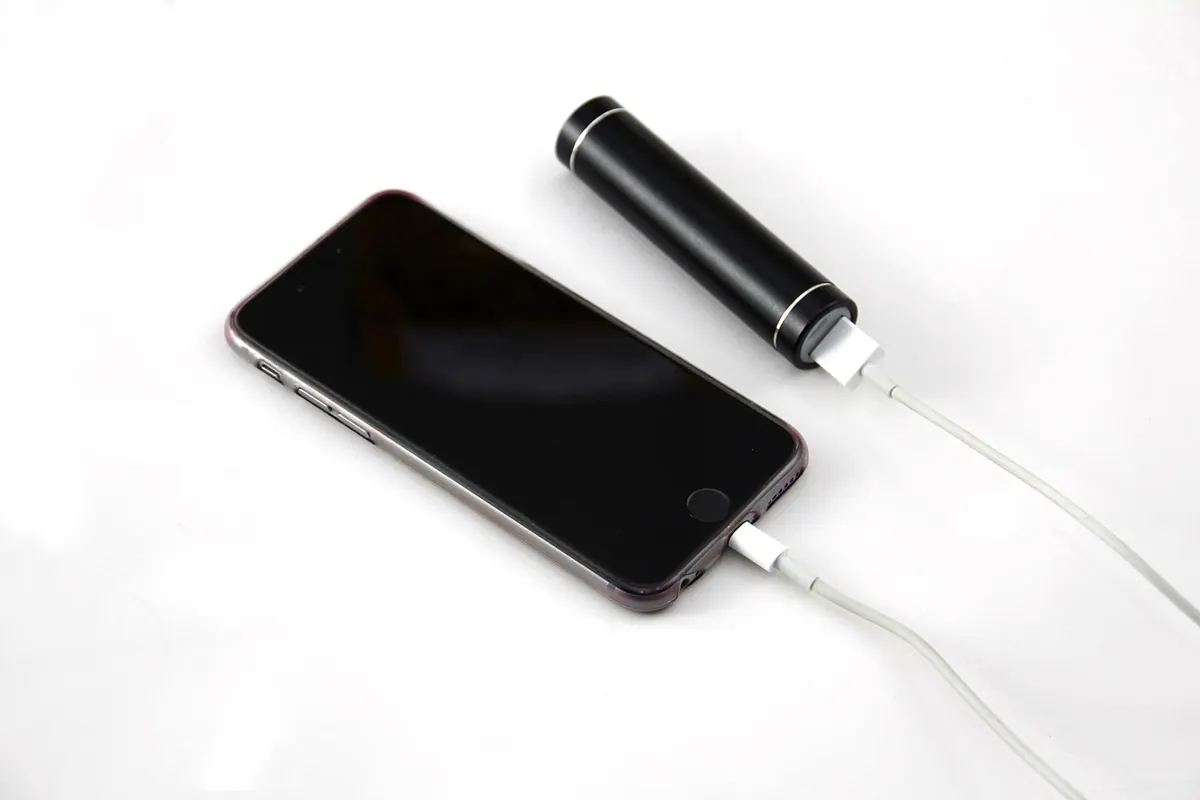
Use the optimized or adaptive charging option built into your phone — it learns your routine and finishes charging just before you wake up, holding at around 80 percent overnight. And please use a decent charger rather than an unbranded bargain-bin brick. If a cable or plug gets unusually hot or smells odd, retire it. Anything involving a swollen, bulging battery is a job for an authorized repair shop, not a kitchen table.
Your twelve-setting checklist
If you'd rather work straight down a list, here it is. Fifteen minutes, one pass.
- Automatic brightness on, and resist pushing the slider up.
- Auto-lock set to 30 seconds.
- Dark mode enabled on an OLED screen.
- Refresh rate lowered to 60Hz if you can live with it.
- Always On Display switched off.
- Background app refresh trimmed to essentials.
- Location permissions changed to "While using."
- Promotional and duplicate notifications muted.
- Email fetch moved to hourly or manual.
- Bluetooth, 5G and hotspot off when unused.
- Optimized or adaptive charging enabled.
- Battery saver or Low Power Mode scheduled for the hours you need it most.
What to do when nothing helps
If you've done all of the above and the phone still struggles to reach dinner time, check its battery health in Settings. Healthy batteries hold less charge over the years, and a cell that has lost a fifth of its capacity won't be rescued by any toggle. A replacement battery at a reputable repair shop is far cheaper than a new phone, and it's a sensible option before you spend more.
Otherwise, suspect an app: uninstall anything you added shortly before the drain started, and watch the usage screen for a few days. Sometimes one bad update is the whole story.
Pick three items from the checklist, not twelve, and live with them for a week. Most people get the biggest gains from auto-lock, background refresh and charging overnight with optimized charging on. Do those first, then let the numbers tell you whether the rest is worth the fuss.
Photo: Peggy_Marco / Pixabay